
Google Shopping Ads Setup Guide: Get Your Products to the Top of Search
Google Shopping Ads account for roughly 80% of retail Google Ads spend according to Store Growers’ March 2026 analysis, and they consistently deliver some of the highest ROAS in digital advertising. But setting them up correctly in 2026 is significantly different from how it worked even two years ago. Performance Max has changed the landscape, feed quality is now the primary competitive variable, and the Standard Shopping vs PMax decision shapes everything downstream. This guide walks through the complete setup from Merchant Center through to campaign launch and first optimisation steps. For the bidding strategy that runs alongside Shopping campaigns, our ROAS improvement guide covers the bidding mechanics in detail.
Quick Answer: Google Shopping Ads setup in 2026 follows five steps: create and verify your Google Merchant Center account, build and upload an optimised product feed, link Merchant Center to Google Ads, set up conversion tracking before launching any campaign, then launch with Standard Shopping if you have low conversion volume or Performance Max if you have 30+ conversions per month. Feed quality is the single biggest performance lever. One study showed that optimising product titles alone increased impressions by 147%.
How Google Shopping Ads Work in 2026
Google Shopping Ads are visual product cards that appear at the top of search results, above text ads and organic listings, when someone searches for a product on Google. Unlike keyword-based Search campaigns, Shopping ads are powered entirely by your product data feed. Google reads your titles, descriptions, prices, images, and attributes, then decides when and how to show your ads based on query relevance.
In 2026, Shopping ads appear across six surfaces:
- Google Search: the primary carousel of product cards at the very top of results.
- Google Shopping tab: a dedicated product search experience with both paid and free listings.
- YouTube: overlay cards on relevant videos, primarily through Performance Max.
- Google Discover: product recommendations in the Discover feed on Android and the Google app.
- Gmail: promotional tab placements showing product cards.
- Google Images: sponsored product tags on relevant image search results.
The three-piece system that powers all of this: your product data feed, Google Merchant Center where the feed lives, and your Google Ads campaigns that determine budget and bidding. Feed quality is the foundation. A product with a vague title, a low-resolution image, or a missing price will barely show regardless of how well the campaign is configured.
Step 1: Set Up Google Merchant Center
Merchant Center is the account that holds your product data and manages your Shopping presence. You cannot run Shopping ads without it.
- Go to merchants.google.com and create a new account. Enter your business name and website URL.
- Verify and claim your website. The simplest method: add a Google tag or HTML meta tag to your website homepage. For Shopify stores, install the Google and YouTube app from the Shopify App Store. It handles verification, conversion tracking, and feed creation simultaneously.
- Complete Business Information under Settings. Add your business address, customer service email, and return policy. Merchant Center uses this data to qualify your products for Shopping and to display business information on your listings.
- Configure Shipping. Add at least one shipping service with accurate cost and delivery time information. Inaccurate shipping settings are one of the most common reasons for feed disapprovals and suppressed listings.
- Set up Returns. From June 2026, Google requires return policy information for Shopping ads in most markets. Add your return window and refund policy in the Shipping and Returns section.
Critical step: Your website must have a secure checkout (HTTPS), a clear refund and return policy, accurate contact information, and pricing that matches your feed exactly. Mismatches between your website and feed trigger Merchant Center policy violations that suspend your Shopping listings.
Step 2: Build an Optimised Product Feed
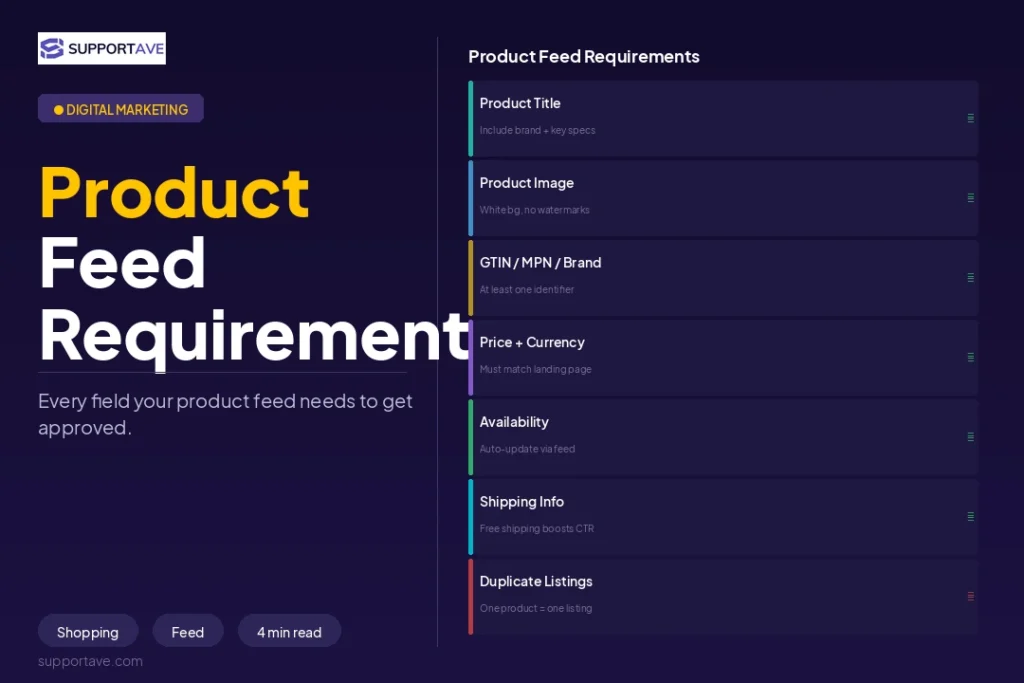
Your product feed is your ad. Everything else in Shopping is determined by how well your feed is constructed. The mandatory attributes for every product:
- ID: a unique identifier for each product variant. Never reuse IDs.
- Title: the most important field for query matching. Format: Brand plus Product Type plus Key Attributes (colour, size, material). Example: ‘Nike Air Max 270 Running Shoes Women Black UK 6′. According to Store Growers’ 2026 analysis, optimising product titles alone increased impressions by 147% in documented tests.
- Description: natural language with differentiating attributes. Avoid keyword stuffing. Google reads descriptions for additional matching context, not just for display.
- Link: the exact URL of the product page. Must match the page that loads when a user clicks.
- Image link: minimum 800x800px, white background for apparel, product-only image. High resolution images with clean backgrounds consistently outperform lifestyle shots in Shopping click-through rate.
- Price: must exactly match the price displayed on your website. Even a one-penny discrepancy triggers a feed error.
- Availability: in stock, out of stock, or preorder. Keep this updated in real time.
- Brand: the manufacturer brand name.
- GTIN: the product’s Universal Product Code (UPC), EAN, or ISBN. GTINs are not mandatory for all products but significantly improve matching accuracy and eligibility for competitive Shopping placements.
- Google product category: the official Google taxonomy category that best fits your product. Use the highest specificity level available.
Optional but high-impact attributes:
- Custom labels (custom_label_0 through custom_label_4): use these to segment products by margin, bestseller status, seasonality, or promotion eligibility. Custom labels let you apply different bidding strategies to different product groups within the same campaign.
- Sale price: triggers a strikethrough price display that consistently improves click-through rate.
- Shipping: product-level shipping overrides if certain items have different delivery costs or timelines.
Step 3: Link Merchant Center to Google Ads
- In Merchant Center, go to Settings, then Linked Accounts, then Google Ads.
- Click Link Account and enter your Google Ads Customer ID.
- In Google Ads, accept the link request under Settings, then Linked Accounts, then Google Merchant Center.
- Once linked, your Merchant Center product data becomes available as a targeting asset within Google Ads campaigns.
Step 4: Set Up Conversion Tracking Before You Spend a Single Pound
This step is non-negotiable. Smart Bidding, which powers both Standard Shopping and Performance Max, requires conversion data to optimise. Launching Shopping campaigns without conversion tracking means your bids are random and your budget is being spent without learning. Our Google Ads conversion tracking setup guide covers the exact GTM configuration to do this correctly. For Shopify stores, the Google and YouTube app installs the conversion tag automatically when you configure it during Merchant Center setup.
Before launching, verify your conversion tag is firing on the order confirmation page by completing a test purchase and checking Goals > Conversions in Google Ads for a test conversion with a green status indicator.
Standard Shopping vs Performance Max: Which to Launch First
This is the most consequential decision in your Shopping setup. The answer has become clearer in 2026:
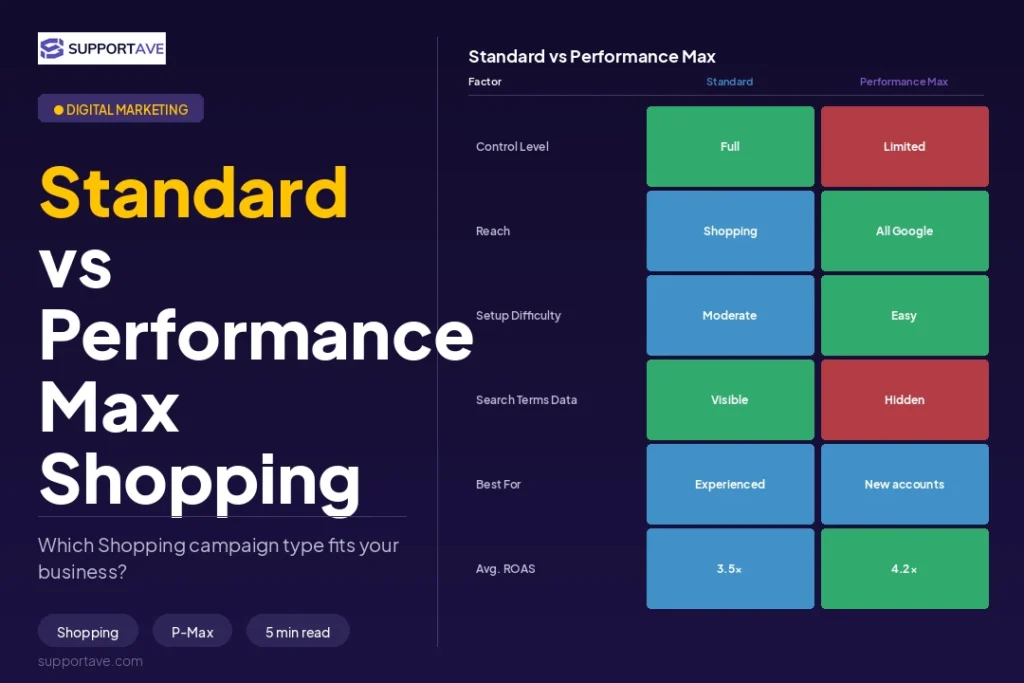
| Factor | Standard Shopping | Performance Max |
| Control level | High: manual bids, product group structure, negative keywords | Low: Google AI controls placements, bids, and targeting |
| Transparency | Full search term visibility | Limited search term reporting |
| Placement | Google Search and Shopping tab only | All Google surfaces including YouTube, Display, Gmail |
| Minimum conversions needed | 10 to 15/month for Smart Bidding | 50+/month recommended for full PMax optimisation |
| Best for | Building conversion history, learning what works | Scaling with proven conversion data |
| Negative keywords | Campaign and ad group level | Account level only (as of 2026) |
Store Growers and ZenoX both recommend the same sequence in 2026: start with Standard Shopping to build conversion data and learn which products and queries generate sales, then introduce Performance Max once you have 30 or more conversions per month and want to expand reach. Many established advertisers run both simultaneously: Standard Shopping on their top 20 hero SKUs for tight control, and PMax on the full catalogue for broader reach.
Step 5: Complete Google Shopping Ads Setup and Launch
Standard Shopping campaign setup
- In Google Ads, click the blue plus button and choose New Campaign.
- Select Sales as your objective. Click Shopping.
- Select your linked Merchant Center account. Choose your target country.
- Choose Standard Shopping. Name it clearly: for example ‘Standard Shopping, UK, All Products’.
- Set your daily budget. Start conservatively: 50 to 100% of your target CPA multiplied by the number of conversions you want per day.
- Choose your bidding strategy. For new campaigns with limited data, start with Maximise Clicks to build impression and click data. Once you have 30 or more conversions, switch to Target ROAS.
- In the product groups section, start with All Products as one group. As you gather data, segment into product groups by category, brand, or custom label to apply different bids.
- Add negative keywords. Start with your brand terms (to prevent Shopping ads from competing with brand Search campaigns) and obvious non-commercial queries like ‘free’, ‘DIY’, and ‘how to’.
Performance Max campaign setup
- Select New Campaign, then Sales, then Performance Max.
- Select your Merchant Center account and target country.
- Add an asset group: upload headlines, descriptions, images, logos, and video if available. If you only want Shopping placements initially, you can launch with just the product feed and minimal assets.
- Provide audience signals: upload your customer list, add your website visitor remarketing list, and include in-market segments relevant to your product category. These signals guide the AI toward your most likely buyers, significantly improving early performance.
- Set your bidding goal: start with Maximise Conversion Value. Once you have stable conversion value data (50+ conversions), add a Target ROAS.
Feed Optimisation: The Ongoing Work That Separates Winners
Launching is the beginning. The stores that dominate Shopping over time do so through continuous feed optimisation, not one-time setup. The highest-impact ongoing actions:
- Title testing: try different attribute orders and keyword placements in titles. Test Brand first versus Product Type first. Monitor which title structure drives higher impression share and click-through rate for similar products.
- Image upgrades: replace any product images below 800x800px. Test lifestyle images versus plain white background for non-apparel categories. Images are the first thing a shopper sees in a Shopping card.
- GTIN completion: add GTINs to every product that has one. Merchant Center surfaces a list of products missing GTINs in the Diagnostics tab. Completing them typically improves eligibility and visibility within 48 to 72 hours.
- Custom label strategy: assign custom labels to segment your catalogue by gross margin. Use higher bids and Target ROAS on high-margin products, and lower bids on low-margin products to protect profitability.
- Merchant Center Diagnostics: check weekly for disapproved products and policy flags. A disapproved product generates zero impressions regardless of budget or bid.
Frequently Asked Questions
How long does it take for Google Shopping Ads to start generating results?
Initial impressions and clicks typically appear within 24 to 48 hours of campaign launch, once your feed is approved. Meaningful optimisation data, where you can start making informed bidding and product decisions, typically takes 2 to 4 weeks depending on traffic volume. Performance Max campaigns typically take 4 to 6 weeks to fully exit the learning phase. Do not make significant bid or budget changes during the first 2 to 3 weeks, as this resets the learning phase and delays stable performance.
Why are my Shopping products disapproved?
The most common disapproval reasons in 2026: price mismatch between feed and website, missing or inaccurate shipping information, policy violations on the landing page (no secure checkout, missing return policy, contact information missing), low-quality images (under 100x100px or watermarked), and missing GTINs on branded products where the manufacturer provides them. Check Merchant Center Diagnostics under Products for the specific error code and resolution steps.
Do I need a different feed for Performance Max and Standard Shopping?
No. Both campaign types pull from the same Merchant Center feed. The feed is managed in Merchant Center and used by whichever campaign types are active in your Google Ads account. Campaign type selection happens at the Google Ads level, not the feed level.
How much budget do I need to start Google Shopping Ads?
A viable starting budget depends on your average order value and target ROAS. A practical minimum: enough to generate 3 to 5 clicks per day on your key products. In most e-commerce categories, this means $10 to $30 per day as a starting point. Below $10 per day, data accumulates too slowly to make informed optimisation decisions. Scale budget once you have 30 or more monthly conversions and your campaigns have exited the learning phase.
What is the difference between free Shopping listings and paid Shopping Ads?
Google Merchant Center includes free product listings that appear in the Google Shopping tab for products that pass feed quality requirements. These free listings generate impressions and clicks at no cost but appear lower in the Shopping tab results than paid ads, which dominate the top positions. Most advertisers run both simultaneously: paid Shopping Ads for high-intent, high-margin products where top placement matters, and free listings providing additional coverage across the catalogue without additional spend.
Supportave manages Google Shopping Ads campaigns with full feed optimisation, Merchant Center management, and Performance Max strategy. See our digital marketing services or contact us to discuss your Shopping campaign setup.